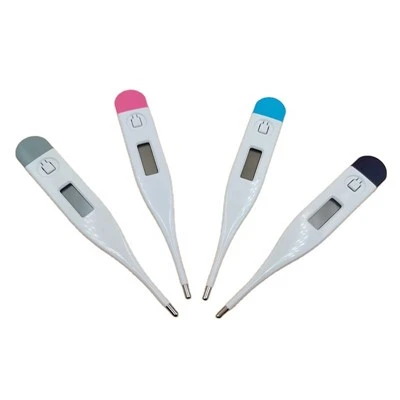

Hey there! As a supplier of Smart Digital Thermometers, I get tons of questions from customers about pairing these nifty devices with their smartphones or tablets. It's super important to understand how to do this right, so you can get the most accurate readings and use all the cool features these thermometers offer. In this blog, I'll walk you through the step - by - step process of pairing a smart digital thermometer with your device.
Let's start with why you'd want to pair them in the first place. When you pair your thermometer with your device, it allows you to record temperature data easily. You can track changes over time, set up alerts when the temperature hits a certain level, and even share the data with your doctor. It's like having a little health assistant in your pocket!
What You'll Need
Before you start the pairing process, make sure you have a few things handy. First, obviously, you need your smart digital thermometer. We offer a variety of options, like the Professional Digital Thermometer which is great for medical professionals and home use alike. Second, you'll need a device such as a smartphone or tablet. It should have Bluetooth capabilities, as most of our smart digital thermometers use Bluetooth to connect. And third, you need to download the corresponding app from the App Store (for iOS devices) or the Google Play Store (for Android devices). Each of our thermometers comes with a specific app that is designed to work with it.
Step - 1: Prepare Your Thermometer
The first thing you need to do is turn on your smart digital thermometer. Usually, there's a power button on the thermometer. Give it a quick press, and you'll see the display light up. Some thermometers might need to be charged first, so make sure it has enough battery power. You can check the battery level on the thermometer's display. If it's running low, connect it to a power source using the provided charging cable and let it charge for a bit.
Step - 2: Enable Bluetooth on Your Device
Now, let's move on to your device. Open the settings on your smartphone or tablet. Look for the Bluetooth option and tap on it. Switch the Bluetooth toggle to the "On" position. Once Bluetooth is enabled, your device will start searching for nearby Bluetooth - enabled devices.
Step - 3: Download and Open the App
Go to the appropriate app store (App Store or Google Play Store) and search for the app for your specific thermometer. You can usually find the name of the app in the user manual that comes with your thermometer. Download and install the app on your device. After the installation is complete, open the app.
Step - 4: Pair the Thermometer with Your Device
Once the app is open, you'll usually see an option to pair a device. Tap on it. The app will then start scanning for available Bluetooth devices in the vicinity. When your smart digital thermometer shows up on the list of available devices, tap on its name. The app will then attempt to establish a connection with the thermometer.
You might be asked to enter a PIN or a passcode during the pairing process. This is a security measure to make sure only your device can connect to the thermometer. The PIN is often provided in the user manual of your thermometer. Enter it accurately, and if the connection is successful, you'll see a confirmation message on both the app and the thermometer's display.
Different Types of Thermometers and Pairing
We also have other types of thermometers in our product line, each with a slightly different pairing process based on their features. For instance, the Digital Pacifier Thermometer is a great option for kids. When pairing it with your device, the steps are similar, but you need to make sure the pacifier is in the "pairing mode." Usually, you'll need to press and hold a button on the pacifier for a few seconds until the indicator light starts blinking, which means it's ready to be paired.
The New Adorable Animal Digital Thermometer is not only cute but also very functional. It might have a different design, but the basic pairing concept remains the same. Follow the instructions in the app and on the thermometer to get it connected.


The Digital Temperature Gauge is often used for measuring the temperature of objects or environments. When pairing it, you might need to adjust some settings in the app to ensure accurate readings. For example, you can set the unit of measurement (Celsius or Fahrenheit) and the type of temperature you want to measure.
The Hospital Digital Thermometer is designed for high - precision measurements. It has strict security protocols during the pairing process. You might need to authenticate your device using a hospital - issued ID or a specific code. This is to ensure the privacy and security of patient data.
Troubleshooting
Sometimes, things don't go as smoothly as we'd like. If you're having trouble pairing your thermometer with your device, don't panic! Here are some common issues and solutions.
First, if your device can't find the thermometer, make sure the thermometer is turned on and in pairing mode. Check if the battery is low; a dying battery can cause connectivity issues. Also, try moving closer to the thermometer, as the Bluetooth range might be limited.
If you enter the wrong PIN during the pairing process, the connection will fail. Double - check the PIN in the user manual and try again. And if the app keeps crashing, make sure it's up - to - date. You can go to the app store and check for any available updates.
Conclusion
Pairing a smart digital thermometer with your device is not as complicated as it might seem. By following the steps I've outlined above, you'll be able to enjoy all the benefits these thermometers offer. Whether you're using the thermometer for yourself, your family, or in a professional setting, having that connection to your device can make temperature tracking a breeze.
If you're interested in purchasing our Smart Digital Thermometers or have more questions about pairing or our products in general, feel free to reach out. We're here to assist you with all your thermometer needs.